agent-desktop guide: what to check before letting AI control your desktop apps
Vercel Labs’ agent-desktop connects AI agents to the buttons and input fields in desktop apps. This guide covers installation, MCP setup, platform requirements, and the limits to check before using it.
Opening the same window, filling in a field, and clicking a button can become a repetitive part of the day. Even after explaining the steps to an AI assistant, you may still have to perform the final actions yourself.
Vercel Labs’ agent-desktop is an open-source tool that lets AI agents read and operate desktop apps. It supports Windows, macOS, and Linux through a command-line interface or MCP. It does not include an AI model to decide what to do, so the connected agent must provide that part of the workflow. Official GitHub repository
Read the app, take an action, and check the result
agent-desktop reads the operating system’s accessibility information. This is the information that helps assistive technologies, such as screen readers, understand an app. It can include button names and the state of input fields.
The AI agent uses this information to choose a target. After agent-desktop clicks a button or changes a value, the agent reads the app again to check the result. Screenshots are also available, but the basic interaction loop relies on accessibility information.
Filling in a field, for example, can be split into three steps: identify the target, enter the text, and read back the result. The workflow needs that final check so the next command does not rely on old information after the interface has changed. How it works and a quick-start example
Where it can be useful
The tool can list apps and windows, find buttons and input fields, click elements, set values, scroll, and resize windows. These features can be combined into repetitive input workflows or simple desktop app tests.
Start with a small task. Entering a short sentence in a test field and reading it back is a useful way to check both the connection and what the target app exposes.
Not everything visible on the screen will be available through accessibility. Canvases and game views that expose little accessibility information need separate evaluation. Available actions also depend on the operating system and the app’s implementation. Official command list
Check the environment before installing
The official documentation lists these environments:
The OS version is only part of the setup. Windows requires the signed-in user’s interactive desktop session. Locked desktops, sign-in screens, and the UAC secure desktop are not supported. The current executable is unsigned, so security software may warn about it or block it. If a warning appears, check the file’s origin and your device’s security rules rather than disabling protection without review. Windows documentation
On macOS, the terminal or agent app that launches agent-desktop needs Accessibility permission. Screenshot features also require Screen Recording permission. macOS documentation
On Linux, a graphical session and a working AT-SPI accessibility bus are required. Input, capture, and window-control support differ between X11 and Wayland, so check the platform documentation for the actions you intend to use. Linux documentation
Windows: Windows 10 1809 or later, on x64 or ARM64
macOS: macOS 13 or later, on Intel or Apple Silicon
Linux: Ubuntu 24.04 or later, on x86_64 or aarch64
Installation and first checks
Installation through npm requires Node.js 18 or later. Run the following command in a terminal:
npm install -g agent-desktop
Then check the version, permissions and platform status, and available apps:
agent-desktop version agent-desktop status agent-desktop list-apps
Use a test app without sensitive documents at this stage. An app appearing in the list does not mean every button or field can be operated. Begin by reading the state of the app you plan to use.
Native executables are also available from GitHub Releases. Homebrew installation is supported on macOS and Linux. If you have installed the tool through more than one route, an older executable may take precedence, so check which version actually runs. Official installation guide
Connect an AI agent through MCP
Version 1.2.0, released on November 5, 2026, added MCP support. Agents that support MCP can call agent-desktop’s functions as tools. v1.2.0 release
The official README gives this command for starting the MCP server:
agent-desktop mcp
In your app’s MCP configuration, use agent-desktop as the command and mcp as its argument. Configuration screens and file formats differ between agents, so follow the instructions for your app. If you already have an MCP configuration, add the new server entry rather than replacing the entire file. Official MCP configuration example
After connecting, you can separate observation from action with requests like these. They are examples for defining a small task, not a record of tests performed by ST Studio.
Also distinguish the default mode from actions that use physical keyboard or mouse input. On Windows, for example, set-value can enter text in the default mode, while type requires --headed. Do not assume every feature runs without affecting the user’s input.
Read first: “List the currently open apps and windows. Do not interact with them yet.”
Identify the target: “Find the input field in the test app. Tell me its name and current state first.”
Make one change: “Enter the test sentence in that field. Do not change anything else.”
Check the result: “Read the entered text back and check that it matches the requested sentence.”
Costs and licensing
agent-desktop is released under the Apache 2.0 license. Commercial use, modification, and redistribution are allowed subject to its conditions. If you redistribute it, review requirements such as preserving the license and applicable notices. License text
Check the tool’s license separately from the costs of the connected AI service. The agent subscription or model API used for the actual work may have its own fees and usage limits.
Before connecting it to your everyday PC
App snapshots, clipboard contents, screenshots, and execution logs can contain personal documents or work information. The official README warns against including these materials in public logs and uploads.
Even when the tool runs on your PC, the connected agent may send interface information or document contents to an external AI model. Before working with client material or unpublished projects, check what information is transmitted and how the service handles it.
Keep a human review step for actions that are difficult to reverse, such as deleting files, sending messages, or making payments. Rather than handing over an entire multi-app workflow at once, start by checking whether one small repetitive task can be completed reliably.
What we checked and the cover image
This article is based on the official README, installation and platform documentation, v1.2.0 release notes, and license, checked on November 6, 2026. ST Studio has not installed the tool or tested its performance and behavior in individual apps. Installation commands and supported features may change, so consult the current documentation before use.
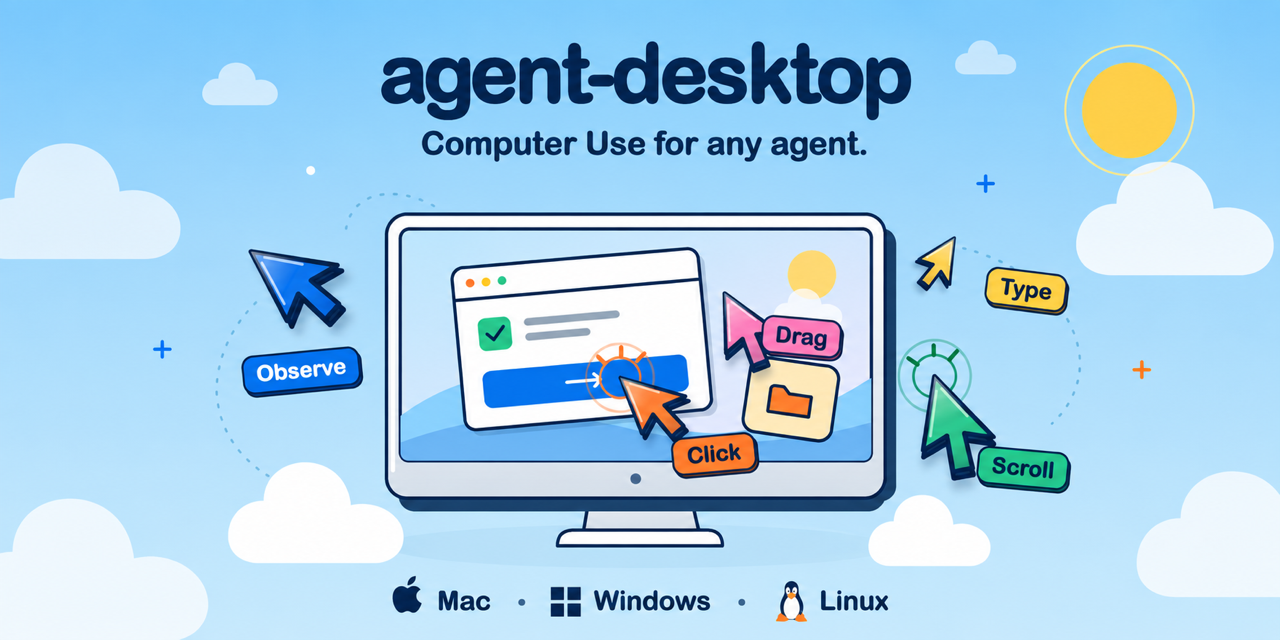
The cover is a project banner from Vercel Labs’ official agent-desktop repository. It is not a screenshot of the software in use or a test result produced by ST Studio. Original image and source · Apache 2.0 license
Official resources
Comments
Korean and English comments appear together in their original language.
Loading comments…
Leave a comment
No account or email needed. Comments appear after administrator approval. Use a password you do not use elsewhere; there is no password recovery. Do not include personal information, links, images, or HTML. Privacy details