MoCapAnything V2 guide: capturing character motion from video
A practical guide to MoCapAnything V2, covering its online demo, local setup, BVH outputs, custom rigs, and licensing considerations.
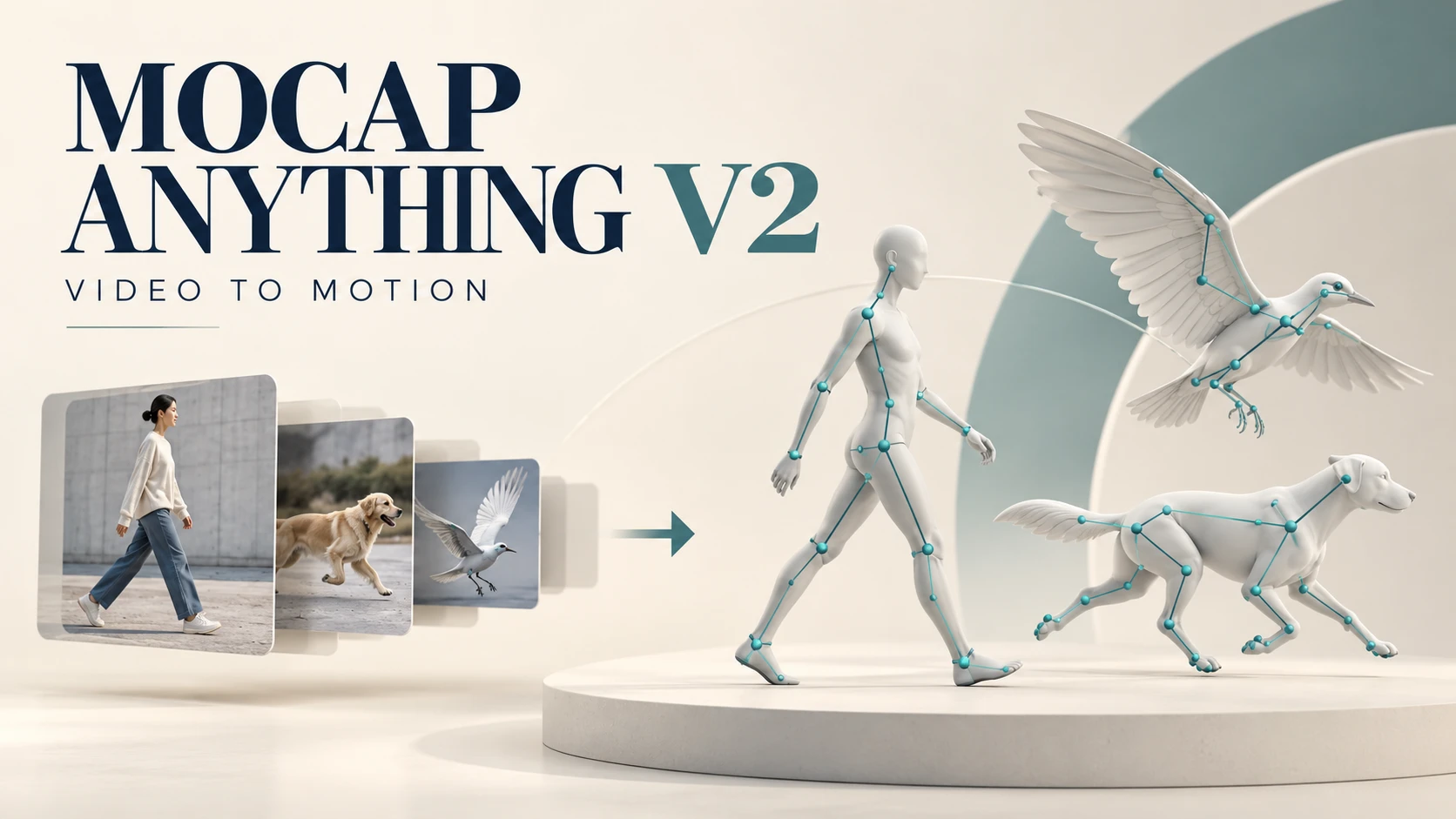
AI-generated concept image illustrating the conversion of video into skeleton motion. This is not an actual tool output.
MoCapAnything V2 is worth exploring if you want to transfer a dancer’s movements to an animal character or turn animal footage into motion for a 3D rig. It takes monocular video and a reference skeleton, predicts joint rotations, and provides motion that can be used as BVH animation. Its targets include people, animals, objects and custom rigs. Official GitHub
What changes in V2?
V2 learns joint positions and rotations together from video. It avoids an intermediate 3D mesh reconstruction and uses learned rotation prediction rather than analytical inverse kinematics. The reference asset’s pose and rotation information help interpret coordinate systems across rigs. V2 paper
“Anything” should not be read as a guarantee of finished results for every character. The public repository is a reimplementation, not the original paper experiment code. Its documentation explains differences in evaluation splits and results. Reproduction notes
Try the online demo first
Start with the samples in the Hugging Face demo.
The target need not match the input video: you can try retargeting motion to another species’ skeleton. The online demo and local application can differ in rendering features. If you need a textured mesh render, review the local setup below. Demo documentation
Step 1: In Mocap · Retarget, choose an example video or upload a video you have permission to use.
Step 2: Select the target species or object.
Step 3: Click Run and inspect the resulting 3D skeleton.
Step 4: Download the available BVH and .npy outputs.
Run it locally
The official Quick Start follows these steps. Python 3.10 or later is recommended, and your PyTorch build should match your NVIDIA driver. Find the exact commands in the installation and run guide.
The export commands in the official examples use Linux/macOS shell syntax. Windows PowerShell sets environment variables differently, so those lines cannot be copied unchanged. The V2 demo does not require the V1 TripoSG installation.
The public V2 checkpoint is approximately 464MB. This is not the total installation size or a GPU-memory requirement. Background-removal models and DINOv2 are downloaded separately on first use. Weights information
For textured 3D mesh rendering, point BLENDER_BIN to a Blender 4.x or 5.x executable. Without Blender, pose .npy files, BVH and skeleton videos can still be generated. Execution and outputs
Step 1: Clone the GitHub repository and prepare Python, PyTorch and the remaining packages.
Step 2: Download the V2 weights and sample dataset from Hugging Face into checkpoints and demo/data respectively.
Step 3: Set PYTHONPATH and run inference/video2pose2rot.py with demo/configs/demo_zoo.yaml.
Step 4: Check joint-position and rotation arrays, BVH and comparison videos in demo_outputs. For the browser interface, run python demo/app.py and open http://localhost:7860.
Using your own character
A custom rig requires more preparation than uploading a video. The documented workflow builds reference data from a base FBX containing the mesh and skeleton, plus one or more motion FBX files. The input video’s rig-name prefix also needs to match.
Check the rig’s forward direction, end-bone cleanup and joint names. The documentation says the full workflow was validated with Truebones Zoo rigs; Mixamo, Maya HumanIK and custom Blender rigs remain unvalidated. Test a sample rig before assuming it will fit your production pipeline. Custom-rig guide
Hardware and licensing checks
The official installation guide does not specify general minimum RAM or VRAM figures or guarantee CPU-only execution. It is therefore difficult to promise smooth operation on a particular graphics card. Multi-GPU training settings are not minimum requirements for running the demo. Environment guide
The code and public V2 weights use the MIT license. However, dependencies including RMBG-1.4, DINOv2, SAM-family models and Truebones data have separate terms. BRIA’s RMBG-1.4 is offered for non-commercial use, with a separate agreement required for commercial use. Do not assume the entire pipeline is unrestricted for commercial projects. Check the rights to your input videos, characters and music too. Project license · BRIA model terms
Videos and useful links
To understand the results, start with the official site’s introduction and its motion, dance and retargeting galleries. Official video and results gallery
Approach MoCapAnything V2 by asking what results it produces for your rig. Explore online samples, inspect the local demo’s BVH output, and then move to custom-rig preprocessing if needed.
Comments
Korean and English comments appear together in their original language.
Loading comments…
Leave a comment
No account or email needed. Comments appear after administrator approval. Use a password you do not use elsewhere; there is no password recovery. Do not include personal information, links, images, or HTML. Privacy details