Installation and first launch
Verify the official distribution and follow these steps for a safe first launch.
- For a typical installation, select the Microsoft Store button on this page. In the Store, confirm product ID 9N0DVFBS5FJ9 and publisher ST Studio before installing.
- If you need a portable copy or want the existing direct package, choose Setup or Portable.
- For a direct Setup or Portable download, confirm that v0.1.0, the file size, and SHA-256 match the downloaded file.
- Confirm that you are using Windows 10 64-bit or later and back up important original files elsewhere.
- Follow the installer for Setup. For Portable, run the downloaded executable from your chosen folder.
NoteThe Microsoft Store version installs as a signed Store package. The directly downloaded Setup and Portable executables on GitHub are currently unsigned, so Windows may show a ‘Windows protected your PC’ or unknown publisher message.
When Windows shows a security message for a direct Setup or Portable download
When you first launch an unsigned Setup or Portable file from GitHub, Windows may say it cannot establish enough reputation for the app. Verify the source and file information before continuing.
This guidance applies to direct Setup and Portable downloads from GitHub. SmartScreen evaluates publisher and file reputation, so consider running the file only when all details below match.
If Windows shows an unrecognized-app message, expand the file details first.
More info- App
- Compare with the downloaded file name
- Publisher
- Unknown publisher
- If the Microsoft Store version is available to you, consider the Store installation before a directly downloaded executable.
- If you choose a direct download, confirm it came from the official GitHub Release linked by ST Studio.
- Confirm that the downloaded file name and SHA-256 match the security details on this page, then open the public VirusTotal report for the same hash.
- If ‘Windows protected your PC’ appears, do not run the file immediately. Select ‘More info’ first.
- Confirm that the displayed app file name matches the Setup or Portable file you downloaded. Because the current version is unsigned, the publisher may appear as ‘Unknown publisher.’
- Select ‘Run anyway’ only when the source, file name, and SHA-256 all match and you trust the file.
Smart-GIF-Optimizer-Setup-0.1.0-x64.exe1fa24e3f61b17f818c9c25b65af20f2f330101186b71e2d887fa0c5b07f6f466Smart-GIF-Optimizer-Portable-0.1.0-x64.exec8c10fd0f8be0a4d35b57ea5ede13d61cf5815527a7337aac81c64085334a2eeGet-FileHash -LiteralPath "C:\Downloads\file.exe" -Algorithm SHA256Compare the complete Hash output with the SHA-256 on this page.
- The file name or SHA-256 does not match the value on this website.
- Windows identifies the file as malicious or dangerous rather than merely unrecognized.
- The direct-download file came from somewhere other than the official GitHub Release linked by the ST Studio website.
- The run option is missing, or security policy on an organization-managed device blocks the app.
If no run option appears, an organization policy or Windows 11 Smart App Control may be blocking the app. We do not instruct you to disable system-wide protections. On a managed device, contact your administrator. Smart App Control currently does not provide a per-app exception.
NoteA SmartScreen unrecognized-app warning is not by itself a malware verdict, but it is not a guarantee of safety either. Text and button placement may vary by Windows version.
Closing and removing the app
Preserve your output and license information before removing the app.
- Make sure no conversion is running, then close Smart GIF Optimizer completely.
- Keep saved GIFs and any original files you need outside the program folder.
- Remove the Microsoft Store or Setup version through Windows Settings. Remove the Portable version by deleting its extracted folder.
- Record the version, original license files, and checksum information in case you reinstall later.
NoteThe settings location and complete removal procedure will be expanded when the final distribution format is confirmed.
Before you start
Check the supported environment and input limits before loading a file.
- Confirm that you are using Windows 10 64-bit or later.
- Prepare a GIF, MP4, MOV, WebM, AVI, or MKV file.
- Keep videos within 500 MB, 5 minutes, and 4K; keep GIFs within 100 MB, 1 minute, and Full HD.
NoteLeave ample storage beyond the recommended range for smoother conversion.
Add a video or GIF
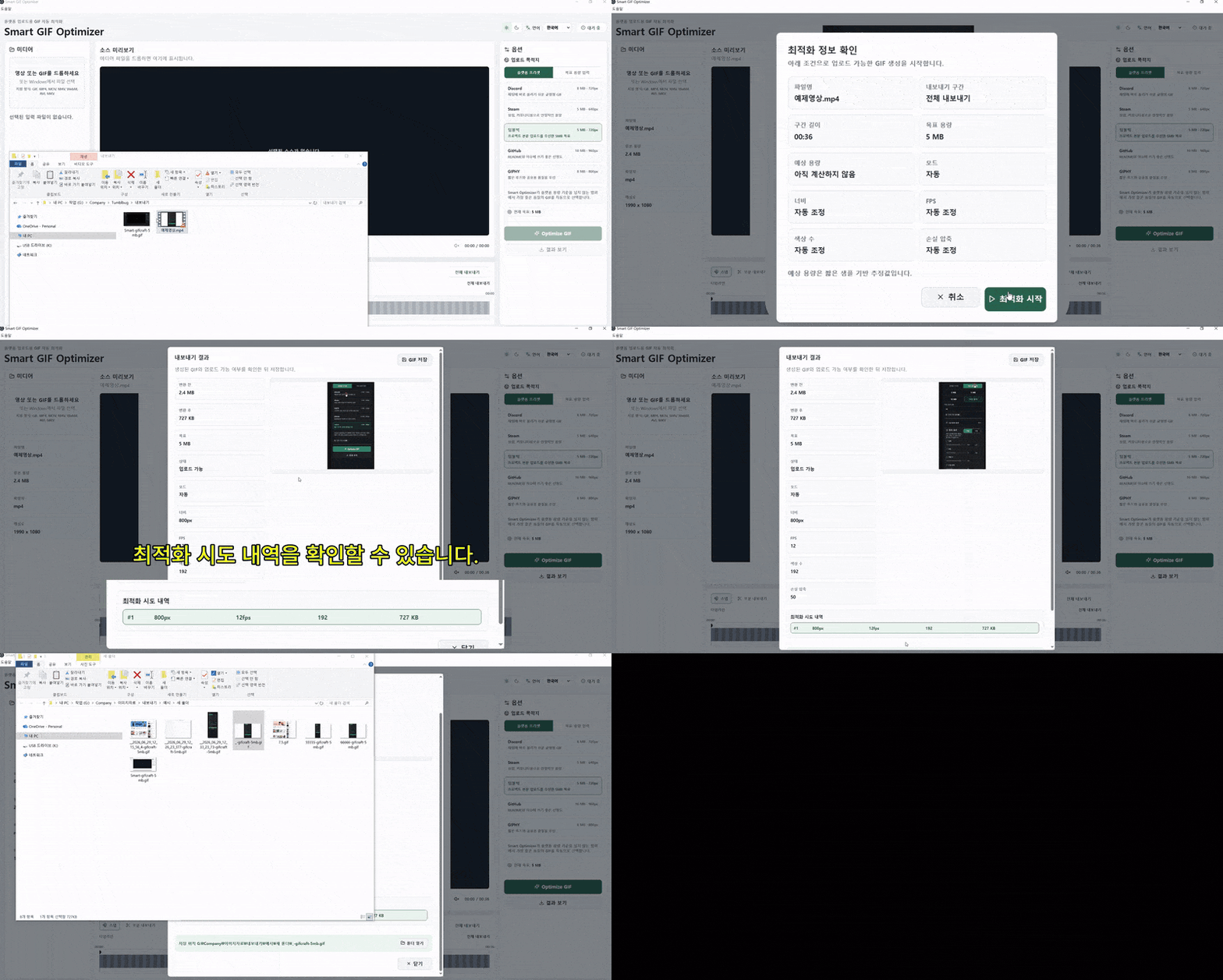
Load the file you want to optimize into the media area.
- Open the media area in the app.
- Drag a file into the outlined area or use the file picker.
- Review the preview, duration, and original file details.
Choose a platform or target size
Set an optimization target based on where you plan to upload the file.
- Choose Discord, Steam, Tumblbug, GitHub, or GIPHY from the platform preset tab.
- If your service is not listed, switch to the target-size tab.
- Enter a maximum size slightly below the upload limit.
Run automatic optimization
The app searches for suitable settings based on your target.
- Select the Optimize GIF button.
- Wait while the app calculates resolution, FPS, colors, and compression settings.
- Review the generated file and output size on the completion screen.
NoteGIF output size varies with scene content and color changes.
Review and export
Inspect the optimized result and save the GIF you need.
- Review quality and motion in the result view.
- If needed, adjust the start and end points to export only part of the file.
- Use Open File or Open Folder to locate the completed GIF.
Use advanced options
Use these controls only when you want to fine-tune the automatic result.
- Switch advanced compression settings from automatic to manual.
- Adjust width, FPS, color count, and lossy compression in small steps.
- Check the estimated size, then optimize again.
NoteManual settings cannot guarantee the target size, so automatic mode is recommended at first.